Newton & Bolt
Puzzle-platformer game with magnetism powers
Date
December 2025
Role
Gameplay/UI developer
Context
Multidisciplinary school project
Game Overview
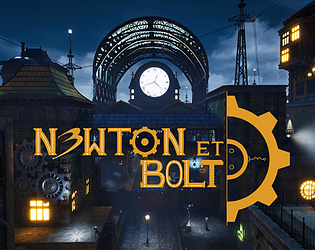
Newton & Bolt is a puzzle-platformer in which a robot named Newton must escape a city filled with hostile robots to bring his dog companion, Bolt, safely back home.
To do so, the player must avoid enemy patrols and navigate the environments by magnetizing to walls and surfaces.
Project Context
This game was developed as part of the Atelier de production de jeux vidéo I course at UQAC in Fall 2025. It is my first multidisciplinary team production and also my first complete project developed with Unreal Engine.
Tools
This game was developed using Unreal Engine 5.
My Contribution
I worked on the project as a Gameplay / UI Developer.
Vision Cone
The game features enemy drones whose goal is to detect the player. I developed their vision system by creating a component that combines a visual light representation with C++ logic. This design allows the system to be easily attached to any actor, such as future enemy types.
On the logic side, the system first checks whether the player is within the detection range. It then computes the angle between the drone and the player using a dot product to determine if the player is inside the vision cone. Finally, a raycast is used to confirm a direct line of sight, preventing detection through obstacles.
Loading Screen
Initially, the loading screen was implemented in a separate level. A subsystem was responsible for loading this transition scene, displaying it, and then loading the next level. However, loading was not asynchronous, causing the interface to freeze and resulting in a poor user experience.
After research, I found that Unreal’s MoviePlayer provided a better solution. This system can display an interface independently of the Game Thread, making it usable during level loading. Unreal Engine itself uses it for the startup splash screen. I reworked the implementation so that each call to OpenLevel() triggers a delegate in the GameInstance, which creates and displays a loading screen using the MoviePlayer.
Music Subsystem
This subsystem, integrated into the GameInstance, handles music playback and ensures that tracks can loop and persist across level transitions. It uses SpawnSound2D with the bPersistAcrossLevelTransition parameter enabled, allowing music to continue seamlessly between levels.
New tracks start with their volume set to zero and fade in gradually. If a track is already playing, its volume is smoothly reduced to create a crossfade. The subsystem can be triggered either from a Level Blueprint at level start or via trigger zones that call the subsystem when the player enters them.
Conveyor Belt and Object Pooling
The conveyor belt is implemented using a ConveyorComponent, which contains a BoxComponent to detect actors entering the zone. Each actor within the zone is moved every tick in a specified direction at a configurable speed. These parameters can be adjusted in Blueprint or per instance.
Two additional actors are used to implement object pooling. PropGenerator spawns a predefined number of disabled object instances at the start of the game. Both the number of instances and the object type can be configured by designers. After a set delay, a disabled object is reactivated and placed at the generator’s location. The PropDisabler actor detects when an object enters its zone and disables it. Together, these actors create an infinite loop of reusable objects.
Respawn Points
Respawn points are implemented using a SphereCollider that detects when the player enters the area and activates the corresponding checkpoint. Each respawn point has a rank, preventing previously passed checkpoints from being reactivated. Once activated, a checkpoint becomes the new saved respawn location.
When respawning, the player character is destroyed and respawned using Unreal’s RespawnCharacter method. I modified GetPlayerStart so that it returns the latest activated respawn point instead of the original PlayerStart, if one exists.
Tutorials
Each tutorial zone uses a BoxCollider to detect when the player enters the area. The zone sends its associated text to the HUD and activates the tutorial interface. The interface remains visible while the player stays inside the zone and disappears once the player leaves it.
For text rendering, I used a RichTextLabel, making it easier to integrate icons and images directly into the tutorial UI.